How do I know that I am entitled to use this software?
- How do I know that I am entitled to use this software?
All TP full time and part time students are entitled to Office 365 ProPlus.





All students are required to bring their own notebooks for lessons. They will be able to:
Important: Students may purchase the notebook from our appointed vendors online or directly from any retailer like Challenger, Courts etc. Do note that external retailers may have different offers and prices for the same models.
Why purchase Notebook from our appointed vendors?
Please click on the Acer, HP, Lenovo icons below to order.



Note: For Full-time students, you may refer to the given link for the required technical specifications for notebooks.
Note: For Part-time students, you may refer to the given link for the required technical specifications for notebooks.

Students enrolled in the courses below are required to own Apple notebook computers or a high-end notebook .
You may purchase them at education price directly from the Apple Education store https://www.apple.com/sg-edu/store
To qualify for Apple education pricing, you will be prompted by Apple to verify your student status with UNIDAYS.
Minimum Device Specification: MacBook Pro*
Processor: M1 Pro 8-Core CPU 14-Core GPU
Memory: 16GB
Hard Drive: 512GB
*Students can use their existing Intel based MacBook Pro that have a minimum of 16GB of RAM.
Minimum Device specification: Windows High-end Notebook
Processor: 10th generation Intel Core i7 or AMD Ryzen 7
Memory: 16GB
Hard Drive: 512GB
Graphic: Integrated graphics/ NVIDIA GeForce MX

Students enrolled in the courses below are required to own high-end notebook computers.
① Minimum Device specification: Windows High-end Notebook
Processor: 10th generation Intel Core i7 or AMD Ryzen 7
Memory: 16GB
Hard Drive: 512GB
Graphic: Integrated graphics/ NVIDIA GeForce MX
② Minimum Device specification: Windows High-end Notebook
Processor: Intel 13th generation, i7 13700H
Memory: 16GB
Hard Drive: at least 1TB SSD
Graphic: NVIDIA GeForce RTX 4070 8GB VRAM or higher
③ Minimum Device specification: Windows High-end Notebook
Processor: Intel 13th generation, i7 13700H or higher
Memory: 16GB RAM
Hard Drive: at least 1TB SSD
Graphic: NVIDIA GeForce RTX 4070 8GB VRAM or higher
Or
Processor: AMD Ryzen 7 260 or higher
Memory: 16GB RAM
Hard Drive: at least 1TB SSD
Graphic: NVIDIA GeForce RTX 5050 8GB GDDR7 VRAM or Higher
④ Minimum Device specification: Windows High-end Notebook
Processor: Intel 13th generation, i7 13700H or higher
Memory: 32GB DDR5 RAM
Hard Drive: at least 1TB SSD
Graphic: NVIDIA GeForce RTX 4070 8GB VRAM or higher
Or
Processor: AMD Ryzen 7 260 or higher
Memory: 32GB DDR5 RAM
Hard Drive: at least 1TB SSD
Graphic: NVIDIA GeForce RTX 5050 8GB GDDR7 VRAM or Higher

ONLY students enrolled in the courses below need notebook computers with USB-Lan adapter, Integrated USB Type A port, or to bring along a multi interface connector.
Minimum Device Specification: High-end Notebook
Processor: 10th generation Intel Core i7 or AMD Ryzen 7
Memory: 16GB
Hard Drive: 512GB
Graphic: Integrated graphics/ NVIDIA GeForce MX

For students enrolled in ALL other full-time courses.
Minimum Device Specification: Windows Normal Notebook
Processor: 10th generation Intel Core i5 / AMD Ryzen 5
Memory: 8GB
Hard Drive: 512GB
Graphic: Integrated graphics/ NVIDIA GeForce MX
Hardware Warranty Service
Please contact notebook vendors directly for hardware warranty service:
| Notebook Brand | Purchased Year | Telephone/ Operating Hours |
E-mail / Support Site |
|---|---|---|---|
ACER |
AY2018-2021 | 1800 8956299 |
|
ASUS |
AY2018-2024 | 62720088 |
|
LENOVO |
AY2019-2024 | 800-852-8100 (for all Lenovo) 62720088 (for Lenovo notebooks with RAM upgrades) (Mon - Fri : 9am to 6pm, Sat: 9am to 3pm) |
|
APPLE |
AY2019-2024 | 67471894 |
|
HP |
AY2022-2024 | 63189845 |
Students enrolled in Temasek Polytechnic , can install Microsoft Office software for free on their personal computers through the Microsoft Office 365 Student Use Benefits programme.
For the full time students (PET)
The programme provides access to Microsoft Office 365, a full version of Office, including:

Students can install the software on up to five computers, including Windows and Mac. Students can also access Office mobile applications on iPhones and Android phones.
The software has the same features and functions as other versions of Office and can be used offline; however, students must connect to the Internet once every 30 days to verify they are still eligible for the programme.
The Microsoft Office 365 program provides institutions of higher education with a suite of hosted communication for students.

Adult learners (CET) will not be issued with TP student account for emails.
Microsoft Office 365 software (limited version) is available for use, as shown below:
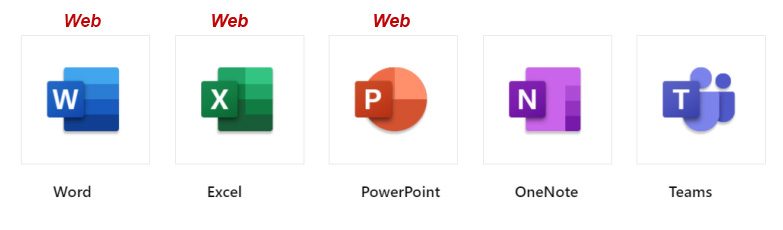
All TP full time and part time students are entitled to Office 365 ProPlus.
Students enrolled in Temasek Polytechnic are eligible for the Microsoft Office 365 license. Students must connect to the Internet once every 30 days to verify they are still eligible for the programme. Students who graduate or are no longer enrolled, will lose their license. When the license expires, students retain read-only access to their Microsoft Office files.
Each subscription license allows you to install Microsoft Office on up to five computers. You can also run Office Mobile for Android or iPhone on up to five mobile devices.
Yes. The software has the same features and functions as other versions of Office and can be used offline.
You may enquire which version of MS office should you download or install for compatibility.
If the version currently installed on your PC/notebook is 32 bit, you will need to download the 32bit version. The downloaded installer will prompt you on the version if you are not sure.
You may choose to download either 32bit or 64 bit Office 365 ProPlus depending on your PC or notebook’s Windows Operating Systems (such as Windows 7-32bit or Windows 8-64 bit). The versions will have to match for the installation.
If you encounter issues in the installation of Microsoft Office 365, please provide:
and send to ITHelpdesk@tp.edu.sg for help.
You may refer to the website below for more information:
How to access email accounts
Step 1: Go to: https://outlook.com/student.tp.edu.sg
Step 2: Enter your Microsoft 365 ID, password and perform Multi-Factor Authentication (MFA) upon prompted:
Microsoft 365 ID: <Admission No.>@student.tp.edu.sg (eg. 1112345A@student.tp.edu.sg)
Password: TP<Barcode No.>@#$ (eg. TPG123456@#$)
(The Admission No. and Barcode No. are printed on your Enrolment Notice, please include the prefix "TP" and suffix "@#$" when you enter your password)
Step 3: Set your own password upon the first login.
Step 4: Key in your personal phone number and email address (e.g. Gmail, Hotmail etc) and go through the verification process
Note: TP will be enforcing multi-factor authentication (MFA) for all new student accounts by the end of the first week of the Academic Year.
Multi-factor Authentication (MFA) Setup
How to setup MFA on your mobile phone.
Step 1: Go to https://for.edu.sg/tp-mfa and click on "Add sign-in method" to add "Microsoft Authenticator"
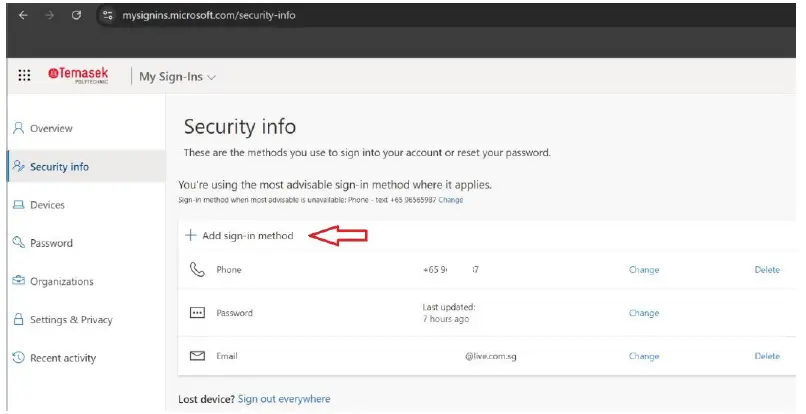
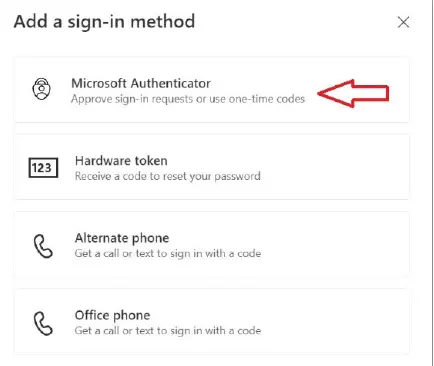
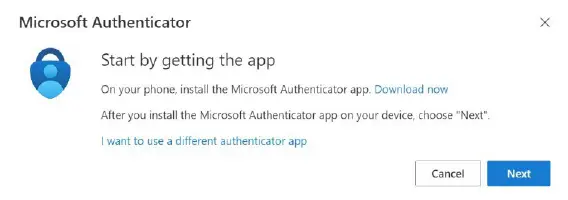
Step 2: Follow the browser instructions to install the "Microsoft Authenticator" app in your personal phone. Click "Next" continue.
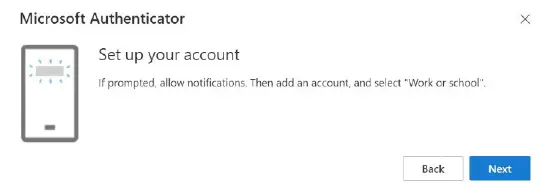
Step 3: Within the Microsoft Authenticator app in your phone, click "+" to add a new account. Select "Work or school account" and then click on "Scan a QR code"
Step 4: Within the browser, click on "Next".
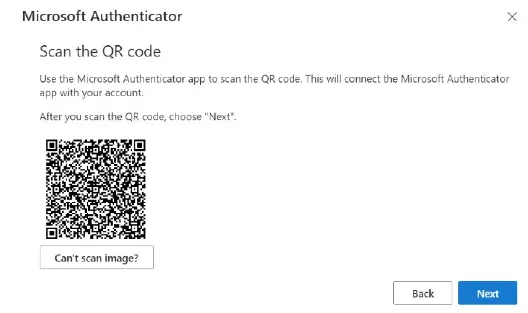
Step 5: Scan the QR code using the Microsoft Authenticator app. And click "Next" in the browser and key in the two-digit number shown in the browser into your Microsoft Authenticator app and press "YES" in the app.
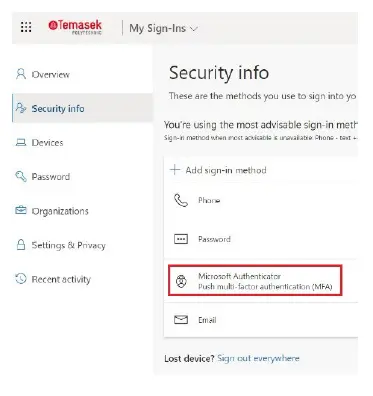
Step 6: Once completed you will be able to see "Microsoft Authenticator" under your sign-in methods.
Device
Specifications
Your Apple device must be running on iOS 17.5 or later.
Your Android device must be running on Android 11 or later.
Potential Performance Issues
The following devices may experience performance issues when using the TP Oei App:
Your Huawei device must be running on HarmonyOS 4.2 or later.
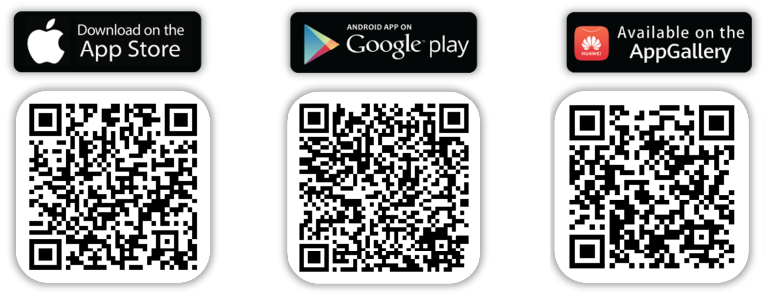
Download TP Oei using the QR codes displayed via the App Store, Google Play Store, and AppGallery.
For students, please use your TP student’s e-mail address and password to log into TP Oei.
For Freshmen, please refer here.
For TP Staff – please use your Office 365 system login ID, followed by “@tp.edu.sg” (e.g. jane@tp.edu.sg).
To reset your TP student’s e-mail password, please contact IT Helpdesk at 6780 5933 or ITHelpdesk@tp.edu.sg.
The phase 1 of the mobile app gives you the essentials to stay updated, stay on schedule, and complete key student actions in one place.
The app can be downloaded from Apple App Store, Google Play Store and Huawei App gallery.
General
With BYOD, students will be able to access software used by TP anytime, anywhere, with a portable device such as the notebook. With this mobility of working and accessing information, TP is preparing students for the industry, as they will be immersed in a digital environment during their course of study with enhanced learning experience. The necessary supporting facilities such as wireless network connectivity and power sockets will be provided to maximise the capabilities of their devices.
All students are required to bring their own personal notebook to school. They will be able to:
Students may purchase the notebook from our appointed vendors or from any external public notebook roadshows. Please refer to here for more information on the offers from our notebook suppliers.
The notebook should meet the minimum notebook specification required for the diploma in study. Please refer to the “What to Buy” section at here for more information.
An existing notebook can be used if it meets the minimum notebook specifications required for the diploma in study. Please refer to here for more information.
The advantages of getting a notebook from the appointed vendors are as follows:
Students may refer to the resources listed under “Software Portal” section at here.
Yes, students may refer to the software listed under “Software Portal” link at here.
Students who need to purchase a new notebook but face financial constraints may apply for the BYOD assistance scheme. Please visit here for more details to see if you are eligible and the type of notebooks available. Alternatively, students can also call our hotline at 6780 5959.
Common IT Issues
Note:
If you encounter ‘Sign On Error’ message while trying to login to your LMS account, please clear your browser cache and restart the browser. You should also logout from your Office365 session (https://login.microsoftonline.com/) before accessing LMS.
Note:
Please remove existing TP-STUDENT-2.4 SSID by forgetting TP-STUDENT-2.4 SSID on your device (mobile phone or notebook) and then choose ‘TP-STUDENT’
Steps for Self-Registration:
1) Turn on Wi-Fi for your mobile device.
2) Connect to SSID “TP-SURF”.
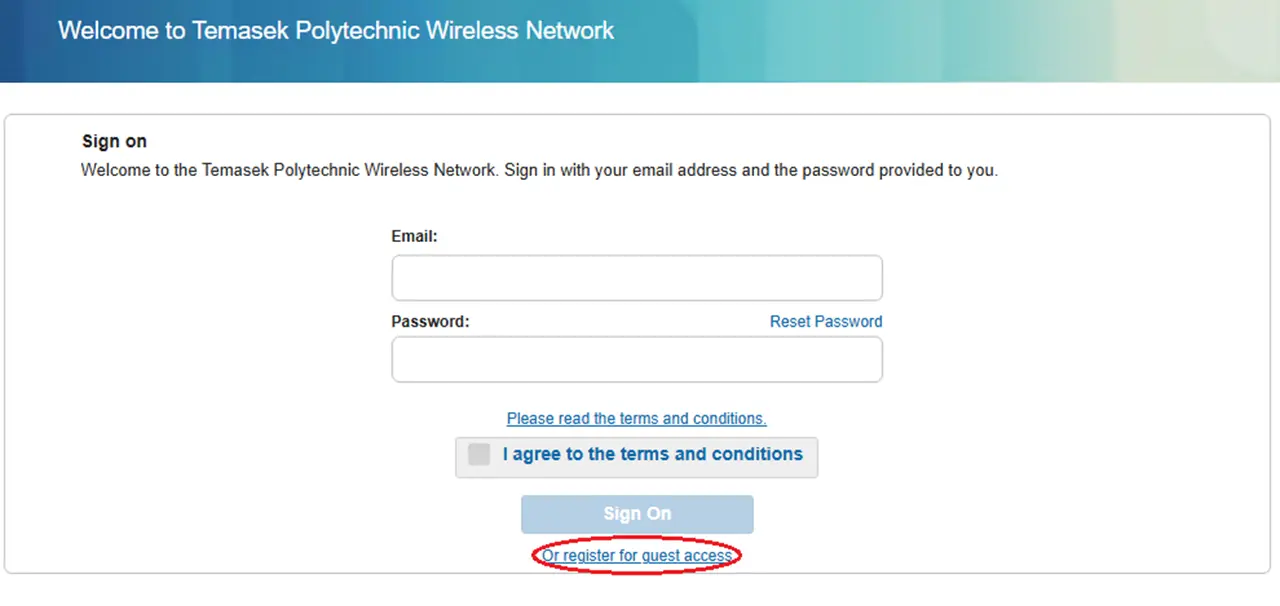
3) Click on “Or register for guest access” as shown below.
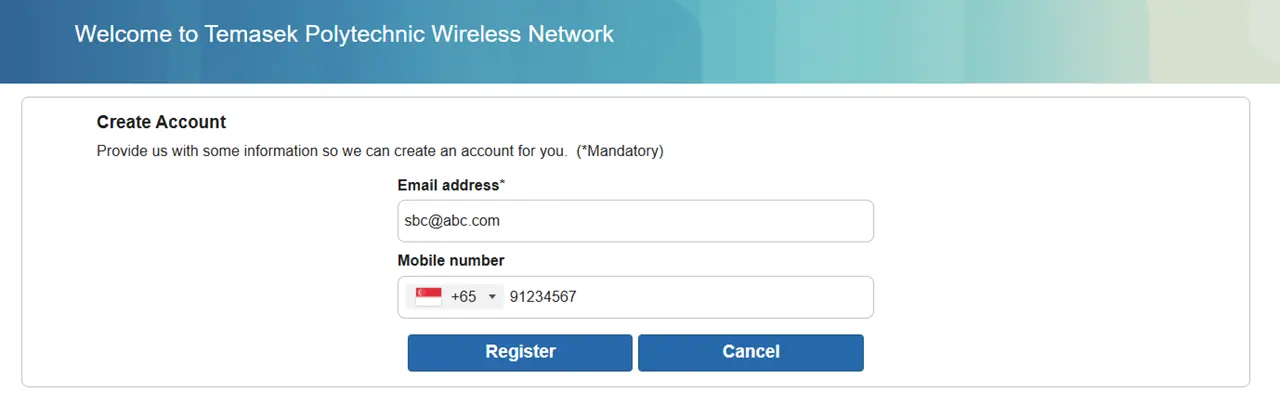
4) Fill in the required fields for the registration and click the “Register” button as shown in the below diagram.
* This is mandatory
5) Upon successful registration, you will see the below “Account Created” page with the login credential.
6) You may sign on immediately by clicking the “Sign On” button.
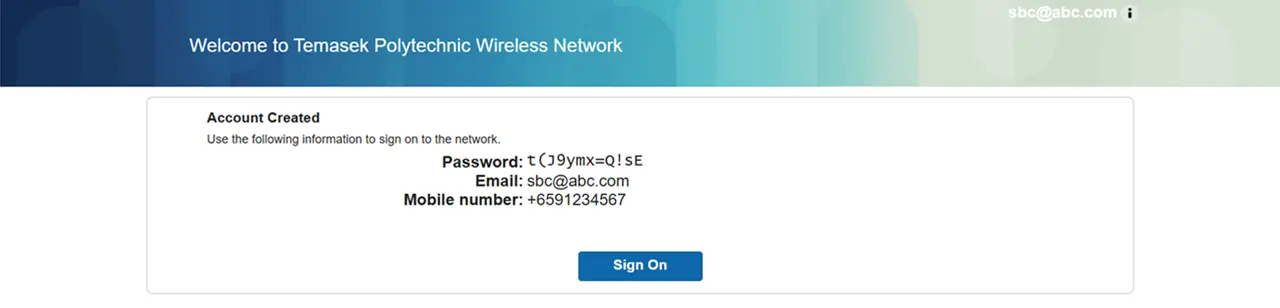
7) An email of your login credential will be sent to your email inbox.
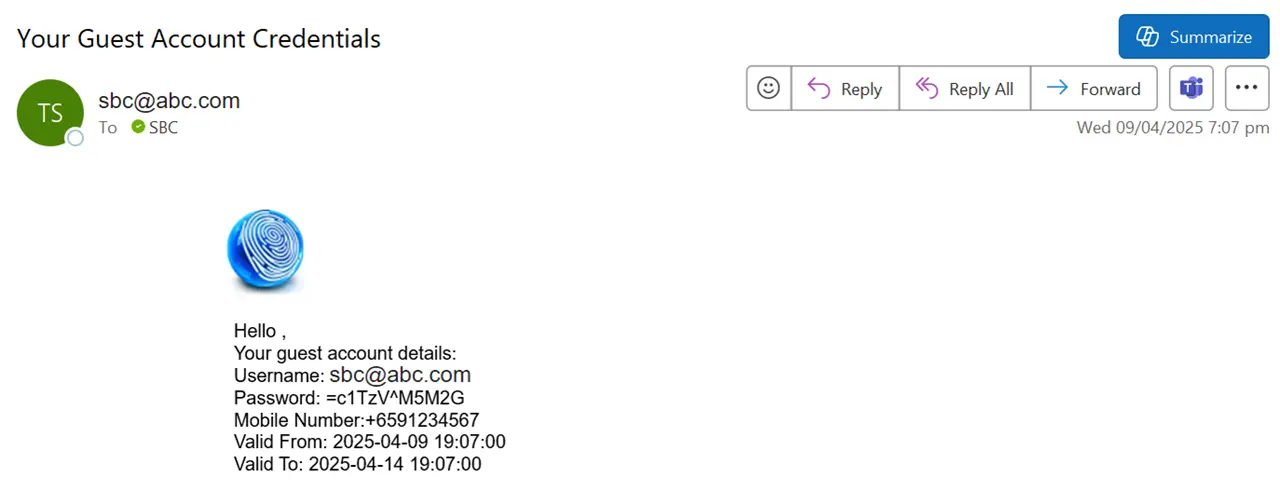
8) After you sign on, you will be prompted to read TP’s Acceptable Use Policy (AUP) and click on “Accept” before you are allowed to connect to TP-SURF.
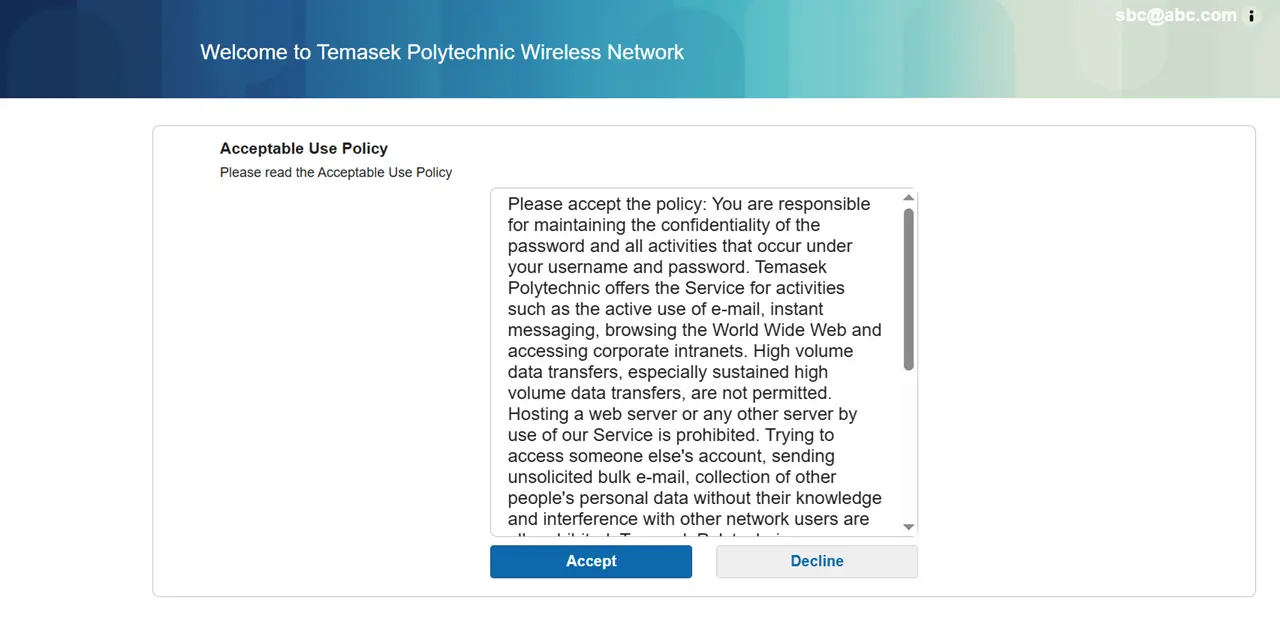
9) After you accepted the AUP, you will re-directed to TP’s web page.
Opportunity Fund Category
Opportunity Fund can only be applied once during your entire course of study at TP. To check your eligibility and submit an application visit the BYOD Financial Assistance Scheme page.
Please click here to see more details about this scheme.
Application must be submitted within 12 months from the invoice/receipt date.
For new students, you must be successfully admitted as a TP student at the point of purchase.
1. Soft copy of HECB/DPF award.
2. Soft copy of the (Tax) invoice/ Official Receipt in Singapore Dollars (SGD/S$).
3.For PFP students who are not DFP Bursary recipients but have a GHI ≤ $5,500 or PCI ≤ $1,375, are required to submit additional supporting documents.
Supporting documents should be combined as ONE PDF document. Save the PDF in below format: Admission Number_Student Name (e.g. 2412345A_Mark Oei Jun Jie). Max file size 3 MB.
Student may claim up to $1,000.00 for the notebook.
There is no restriction to the brand or the specification of the notebook that is purchased. However, student should check with their school to ensure the specifications meet the needs of their course.
Applicant is allowed to claim for purchase of notebook only. IPads, tablets or desktops are not allowed.
Application will take about 4 to 6 weeks of processing upon complete submission of form and supporting documents.
All application results will be made known to the student via TP student email account.
Students may contact TP’s IT Helpdesk at 6780 5933 or email at ITHelpdesk@tp.edu.sg for the following services:
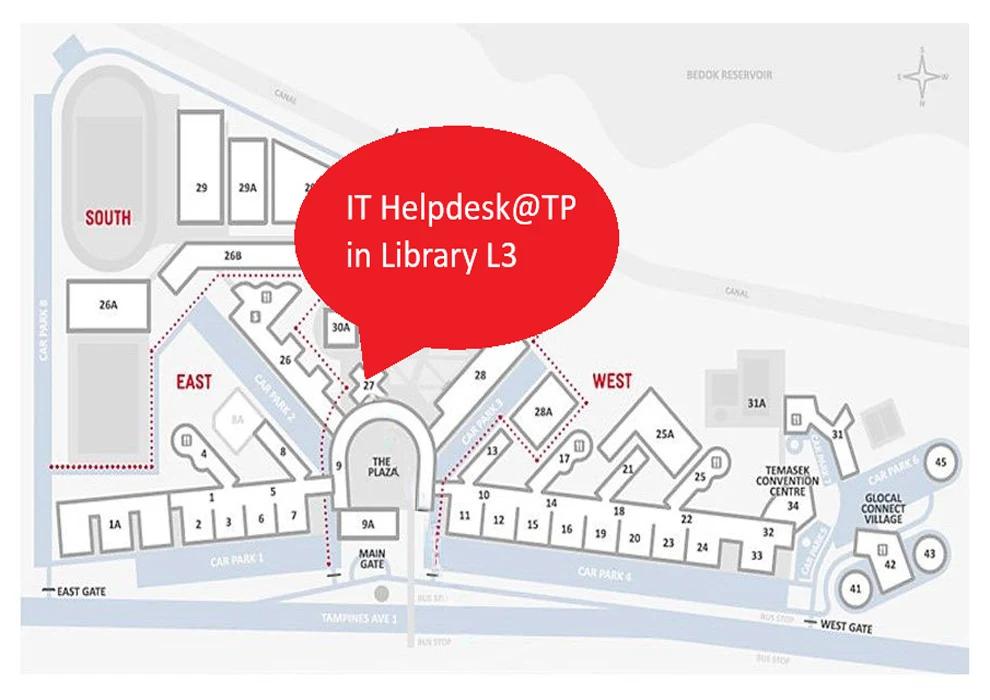
Our centre is located at Block 27, Library level 3. The operating hours of the Centre are: